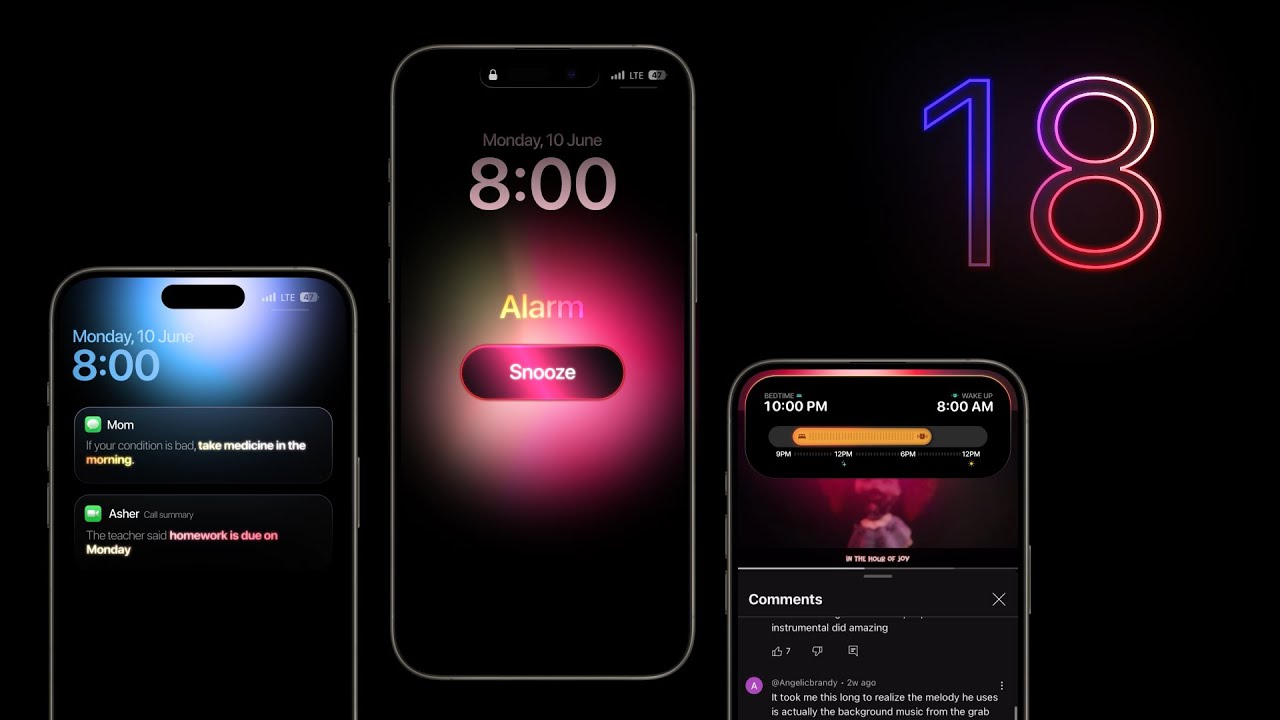
Apple has officially unveiled iOS 18, and the beta version is now available for users who want early access to its features. If you’re wondering how to install iOS 18 beta on your iPhone, this guide walks you through everything you need to know—from requirements to precautions and the actual installation steps.
Trying out a beta version lets you experience new tools and improvements ahead of the public release. However, it also comes with risks, so it’s important to follow the process carefully.
What You Need Before Installing iOS 18 Beta
Before you rush to install the beta, make sure your iPhone is compatible and you’ve prepared your device properly. Here’s a quick checklist to help you get started:
| Requirement | Details |
|---|---|
| Compatible Devices | iPhone 12 and newer |
| Apple ID | Registered with Apple Beta Software Program |
| Backup | iCloud or iTunes full device backup |
| Storage | At least 6GB free space |
| Battery | Over 50% charge or plug into power |
It’s always smart to back up your data. Beta software can be unstable, and you don’t want to lose important files or photos. If you’re using the latest iPhone, check out our iPhone 16 battery life test to see how it performs with iOS 18.
Step 1: Sign Up for the Apple Beta Software Program
To get the iOS 18 beta, you need to register your Apple ID with Apple’s official Beta Software Program. This gives you access to beta versions of iOS, iPadOS, macOS, and more.
| Step | Action |
|---|---|
| 1 | Go to beta.apple.com using Safari on your iPhone |
| 2 | Tap “Sign Up” or “Sign In” using your Apple ID |
| 3 | Agree to the terms and enroll your iOS device |
After you’re enrolled, you’ll be able to download the beta profile directly from Apple’s site.
Step 2: Download and Install the Beta Profile
Once enrolled, the next step is to download the configuration profile that enables beta updates on your iPhone.
| Step | Action |
|---|---|
| 1 | On the Beta Program site, choose “iOS” and tap “Download Profile” |
| 2 | Go to Settings > Profile Downloaded |
| 3 | Tap “Install” and follow the prompts |
| 4 | Restart your iPhone once prompted |
After restarting, your iPhone will now be able to receive iOS 18 beta updates via the Software Update section in Settings.
Step 3: Install iOS 18 Beta
Now that the beta profile is active, it’s time to install the software.
| Step | Action |
|---|---|
| 1 | Go to Settings > General > Software Update |
| 2 | Tap “Download and Install” under iOS 18 Beta |
| 3 | Enter your passcode and wait for installation to complete |
Make sure your iPhone is connected to Wi-Fi and remains plugged into power during the entire process. The update can take anywhere between 15–45 minutes, depending on your device and internet speed.
If you’re curious about what’s new in iOS 18, we covered the major updates in this iOS 18 features breakdown.
What to Expect After Installing iOS 18 Beta
While the beta lets you enjoy the latest UI tweaks, AI tools, and customization options, it’s not as stable as the final version. Some apps may crash, features may behave unpredictably, and your battery life might be shorter.
Here’s a breakdown of the pros and cons:
| Pros | Cons |
|---|---|
| Access to new features early | Bugs and crashes |
| Helps you prepare apps for public release | May affect battery performance |
| You can give feedback to Apple | Some features may be incomplete |
According to Wikipedia, beta software is meant for testing and feedback, not daily use. Therefore, installing it on your primary device isn’t recommended unless you’re prepared for instability.
How to Revert to iOS 17 (Optional)
If the beta becomes too buggy or you prefer the stable version, you can downgrade back to iOS 17. You’ll need to put your iPhone in recovery mode and restore using a computer with iTunes or Finder.
Just make sure you have a backup from iOS 17, or you won’t be able to restore your previous data.
Trying out iOS betas gives you a head start in adapting to Apple’s evolving ecosystem. But as always, proceed with caution and make sure you’re prepared.
Want to know more about how Apple tests its operating systems? Here’s a great read on iOS history and development for deeper insight.
Let us know how your iOS 18 beta experience goes — and don’t forget to keep checking back for more Apple how-tos and software guides.