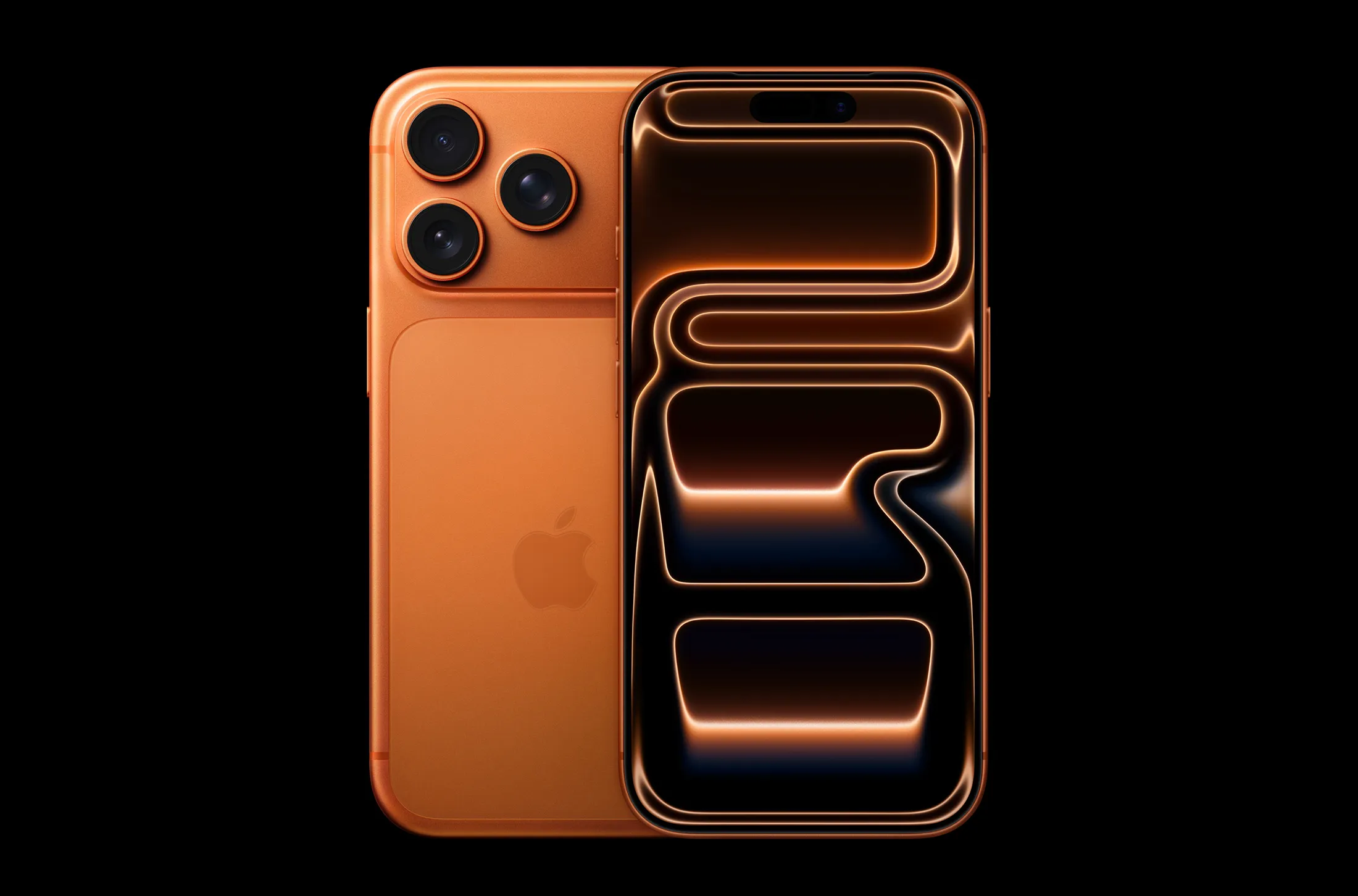
The frustration of a faulty microphone on your iPhone can disrupt calls, recordings, and video chats. If you want to get your iPhone microphone working again, you are not alone.
Many users face microphone problems due to software glitches, dirt, or hardware issues.
This article offers clear guidance to restore your iPhone microphone’s functionality, ensuring crisp audio in all your conversations and recordings.
Whether you use your iPhone for business calls, social media, or creative projects, microphone issues can feel like a roadblock. We will walk you through practical troubleshooting steps and share insights on how to maintain your device’s sound quality.
Along the way, you will find comparisons to help decide when professional repair might be necessary.
| Feature | Specification |
|---|---|
| Compatible Models | iPhone 6 and newer |
| Microphone Types | Built-in bottom, front, and rear mics |
| Common Issue Causes | Dirt, software bugs, app conflicts |
| Basic Fix Tools | Settings reset, app permissions, cleaning |
| Repair Options | Apple service, authorized repair centers |
Real Life Use and Experience
In daily use, the iPhone microphone typically delivers reliable, high-quality audio for calls and recordings. However, many users notice muffled or no sound during calls or when using apps like Voice Memos or video recording.
In my experience, software updates sometimes introduce microphone bugs that require simple resets or app permission tweaks.
Cleaning the microphone grills carefully with a soft brush often solves the problem when dust or lint blocks the mic.
One limitation is that moisture damage can permanently affect microphone performance, making software fixes ineffective. Apple’s latest iOS versions have improved noise cancellation and mic sensitivity, enhancing voice clarity in noisy environments.
Still, you need to check app settings to ensure the microphone is allowed and functioning correctly.
| Feature | iPhone 14 Pro | Samsung Galaxy S23 |
|---|---|---|
| Price | About 1000 USD | About 800 USD |
| Microphones | Three microphones for spatial audio | Four microphones with noise cancel |
| OS | iOS | Android |
| Repairability | Moderate | Moderate |
| Best for | Apple ecosystem users | Android and multimedia enthusiasts |
If you rely on the Apple ecosystem and need seamless integration, the iPhone remains the top choice. Samsung’s Galaxy S23 offers competitive audio features but suits users who prefer Android.
Knowing your device’s strengths helps decide when microphone issues require expert attention or simple user fixes.
Market Context and Industry Relevance
The smartphone microphone plays a critical role in the broader landscape of mobile communication and content creation. In 2025, more users create podcasts, videos, and live streams on their phones, driving demand for reliable audio hardware.
The rise of AI audio enhancement tools further supports microphone quality improvements in devices like the iPhone. Microphone technology advances continue to shape user experiences worldwide.
Furthermore, iPhone’s integration with voice assistants and communication apps highlights the importance of microphone functionality.

As smartphones evolve, audio capture remains central to user interaction, supported by innovations in mobile operating systems. Keeping your microphone working well ensures you stay connected and productive.
FAQs
Why is my iPhone microphone not working during calls?
This usually results from blocked microphone holes, app permission issues, or software bugs. Check settings, clean the mic openings, and restart your phone.
How can I test if all iPhone microphones work?
Use Voice Memos to test the bottom microphone, video record with front and rear cameras to test other mics. If any sound is missing, that mic may have an issue.
Can I fix a broken microphone myself?
You can try cleaning and software fixes. For hardware damage or water exposure, visit an authorized Apple service center.
Why does my iPhone microphone work with some apps but not others?
Check app permissions in Settings under Privacy to ensure microphone access is allowed for each app.
Will updating iOS fix microphone problems?
Sometimes updates include fixes for audio bugs, so keeping iOS up to date is recommended.
Troubleshooting Tips: Step-by-Step Fix
If your iPhone microphone is not working properly, follow these steps carefully to get it back to full function:
- Restart Your iPhone
Press and hold the power button, slide to power off, wait 30 seconds, then turn your iPhone back on. This can clear temporary software glitches affecting the microphone. - Check Microphone Permissions
Go to Settings > Privacy > Microphone. Ensure that apps you use for calls or recordings have microphone access enabled. - Clean the Microphone Openings
Using a soft brush or compressed air, gently clean the microphone grills at the bottom and near the cameras. Dirt and lint can block sound. - Test Each Microphone
Open Voice Memos to test the bottom microphone by recording your voice. Use the front and rear cameras to record video with sound to test the other microphones. - Reset All Settings
Go to Settings > General > Reset > Reset All Settings. This resets preferences without deleting your data and can fix misconfigured settings affecting the microphone. - Update iOS
Navigate to Settings > General > Software Update. Download and install any available updates to fix known bugs. - Remove Case or Screen Protector
Sometimes cases or screen protectors cover the microphone openings. Try removing them to see if sound improves. - Test with Headphones
Plug in headphones with a built-in mic. If audio works through headphones but not through the iPhone mic, it could indicate hardware issues. - Contact Apple Support
If none of these steps work, your microphone might have hardware damage. Visit an authorized service provider for diagnostics and repair.

Getting your iPhone microphone working again is often simpler than it seems. By following these troubleshooting steps, many users restore clear sound without costly repairs.
Remember to maintain your device’s cleanliness and keep your software updated for optimal audio performance.
If you need more advanced tech insights, check out our guides on the Nothing Phone AI features that could change how you use your smartphone and the best AI chatbot for tech recommendations.
With a little care and knowledge, your iPhone microphone will keep capturing your voice clearly in every call and recording.