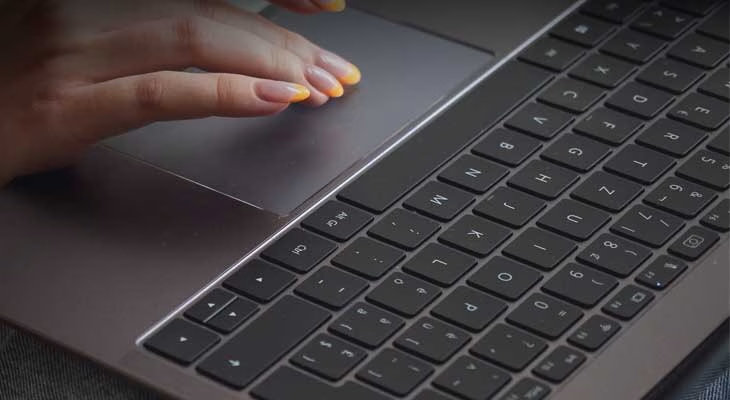
Touchpads are essential for navigating your laptop — especially when you don’t have a mouse nearby. However, if you’re trying to fix laptop touchpad issues and it’s completely unresponsive, don’t panic. This guide walks you through proven steps to troubleshoot and restore touchpad functionality.
Whether you’re using a Windows 10 or Windows 11 device, these fixes apply to nearly every laptop brand including HP, Dell, Lenovo, Acer, and ASUS.
1. Check if the Touchpad is Disabled
Before diving deep into system settings, make sure the touchpad wasn’t accidentally turned off. Many laptops include a function key (like F6, F7, or F9) that toggles the touchpad on or off.
| Step | Action |
|---|---|
| 1 | Locate the touchpad icon on your function keys (usually F1–F12) |
| 2 | Press Fn + [Touchpad Key] |
| 3 | Test the touchpad for responsiveness |
This simple fix works more often than you’d expect, especially after accidental keystrokes.
2. Enable Touchpad in Windows Settings
If the touchpad toggle key didn’t help, the next step is to ensure your touchpad is enabled in system settings.
| Step | Action |
|---|---|
| 1 | Press Windows + I to open Settings |
| 2 | Go to Devices > Touchpad |
| 3 | Ensure the touchpad is turned On |
| 4 | Restart your laptop |
This method is helpful if the touchpad was disabled due to software updates or system tweaks.
3. Update or Reinstall Touchpad Drivers
Drivers act as the bridge between your touchpad hardware and the Windows OS. A corrupted or outdated driver can easily make the touchpad stop working.
| Step | Action |
|---|---|
| 1 | Right-click on Start and select Device Manager |
| 2 | Expand Mice and other pointing devices |
| 3 | Right-click on your touchpad device and choose Update driver |
| 4 | If updating doesn’t work, uninstall and restart your PC to reinstall automatically |
Updating drivers is especially important after a major Windows update. For more on laptop repairs, check out our guide on how to fix a laptop keyboard.
4. Check BIOS/UEFI Settings
Some laptops offer touchpad toggles within BIOS or UEFI firmware. If the touchpad has been disabled at this level, it won’t function within Windows.
| Step | Action |
|---|---|
| 1 | Reboot your laptop and press the BIOS key (commonly F2, F10, or DEL) |
| 2 | Navigate to Internal Pointing Device or Touchpad settings |
| 3 | Make sure it’s set to Enabled |
| 4 | Save changes and exit BIOS |
Caution: Be careful not to change unrelated BIOS settings. Misconfiguration can affect boot or system performance.
5. Run Windows Troubleshooter
Windows has built-in tools to identify and automatically fix input issues. The Hardware Troubleshooter often detects problems with touchpads.
| Step | Action |
|---|---|
| 1 | Open Settings > Update & Security > Troubleshoot |
| 2 | Click Additional troubleshooters |
| 3 | Run Hardware and Devices troubleshooter |
| 4 | Follow the prompts and restart your device |
Although not always successful, this tool is worth trying before attempting hardware repairs.
6. Perform a System Restore or OS Reset
If your touchpad stopped working after a software installation or update, you can use System Restore to roll your system back.
| Option | Details |
|---|---|
| System Restore | Restores your PC to an earlier working state |
| Reset this PC | Reinstalls Windows without deleting personal files (optional) |
To access System Restore:
- Press Windows + R, type
rstrui, and follow the prompts.
If you’ve tried all software fixes and nothing worked, resetting your OS may be the cleanest option.
7. Hardware Issue? Get Professional Help
If your laptop is out of warranty or you’ve dropped it recently, the touchpad could be physically damaged. At this point, it’s wise to consult a technician.
Look out for these signs:
- Touchpad feels loose or cracked
- No response even after system reset
- Cursor moves erratically or jumps
We’ve seen similar hardware-related cases in our laptop fan troubleshooting guide, so don’t rule out physical issues.
Summary: Common Fixes for Laptop Touchpad Issues
| Solution | Works Best For |
|---|---|
| Fn key toggle | Accidental touchpad disabling |
| Windows Settings | System-level touchpad settings |
| Driver update | Post-update glitches or missing drivers |
| BIOS settings | Hardware-level touchpad lock |
| Windows troubleshooter | General system errors |
| System Restore/Reset | Software-related issues |
| Hardware repair | Physical or internal touchpad damage |
A malfunctioning touchpad doesn’t always mean your laptop is broken. In fact, many of these problems stem from software settings, driver updates, or overlooked toggles.
According to Wikipedia, touchpads use capacitive sensing to detect finger movement — meaning even small configuration issues can make them stop responding. Additionally, keeping drivers updated, as mentioned on the device driver page, helps ensure consistent functionality across Windows versions.
By following these steps, most users can restore touchpad functionality without needing advanced technical knowledge.


